 Opsis
Opsis
Run a presentation with Opsis
Opsis is a portable Windows presentation application for worship services. Use the control screen to prepare lyrics, Bible readings, photos, videos, MIDI or MP3 files, then send the finished presentation to a projector, second display, or stage foldback screen.
Before a service: connect your displays, open Opsis, test the projector output, and keep all service media in an easy-to-find folder.
Getting started
- Download the Opsis executable and copy it to the folder where you keep your presentation files.
- Double-click
Opsis.exe. The portable application unpacks itself and opens without a traditional installation. - Connect the projector or second monitor before starting the presentation. Set Windows to Extend these displays when you need separate control and output screens.
- Open the relevant Opsis workspace, import or select the content for the service, and confirm that the output display shows the expected slide.
The main screen
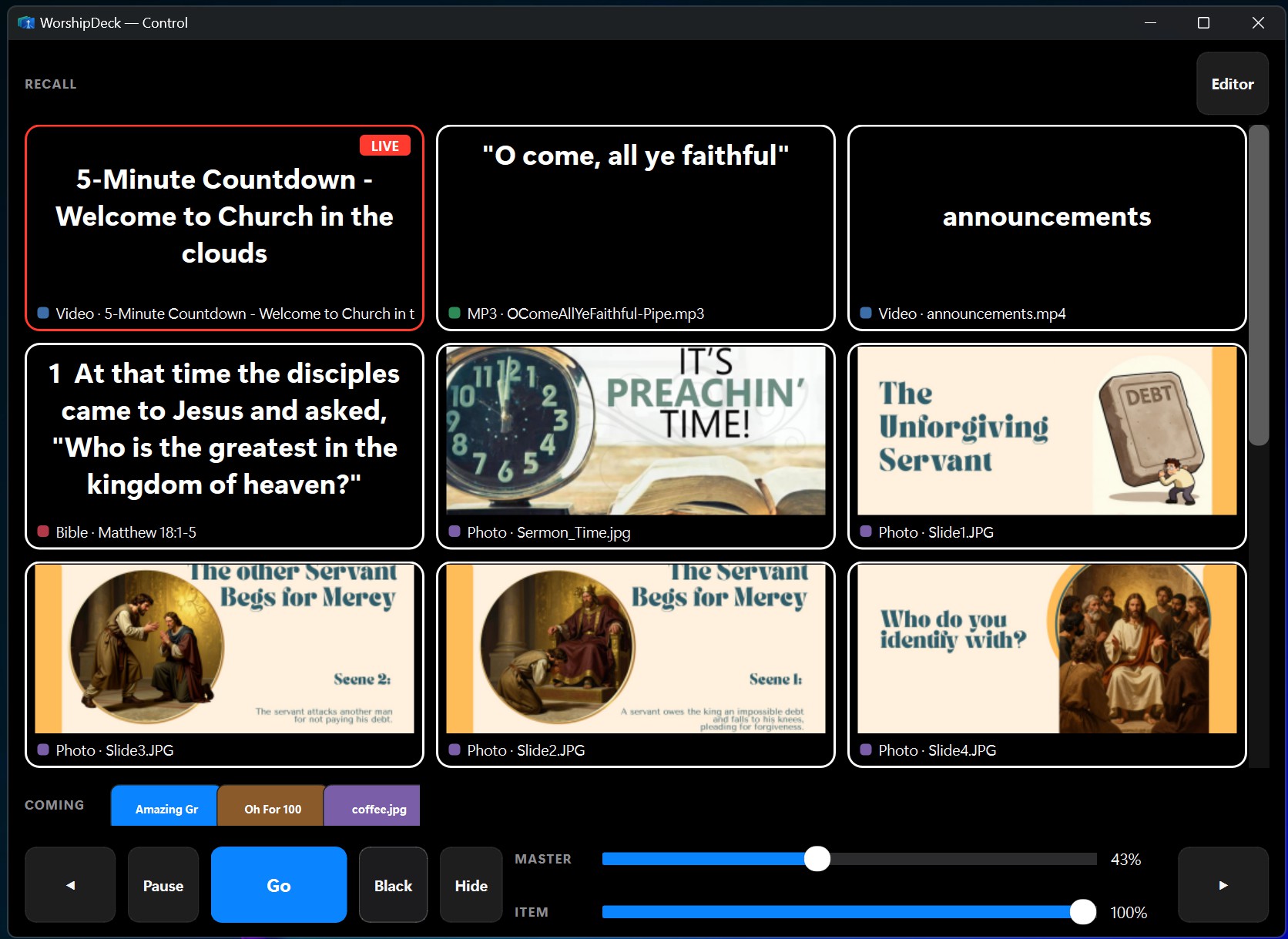
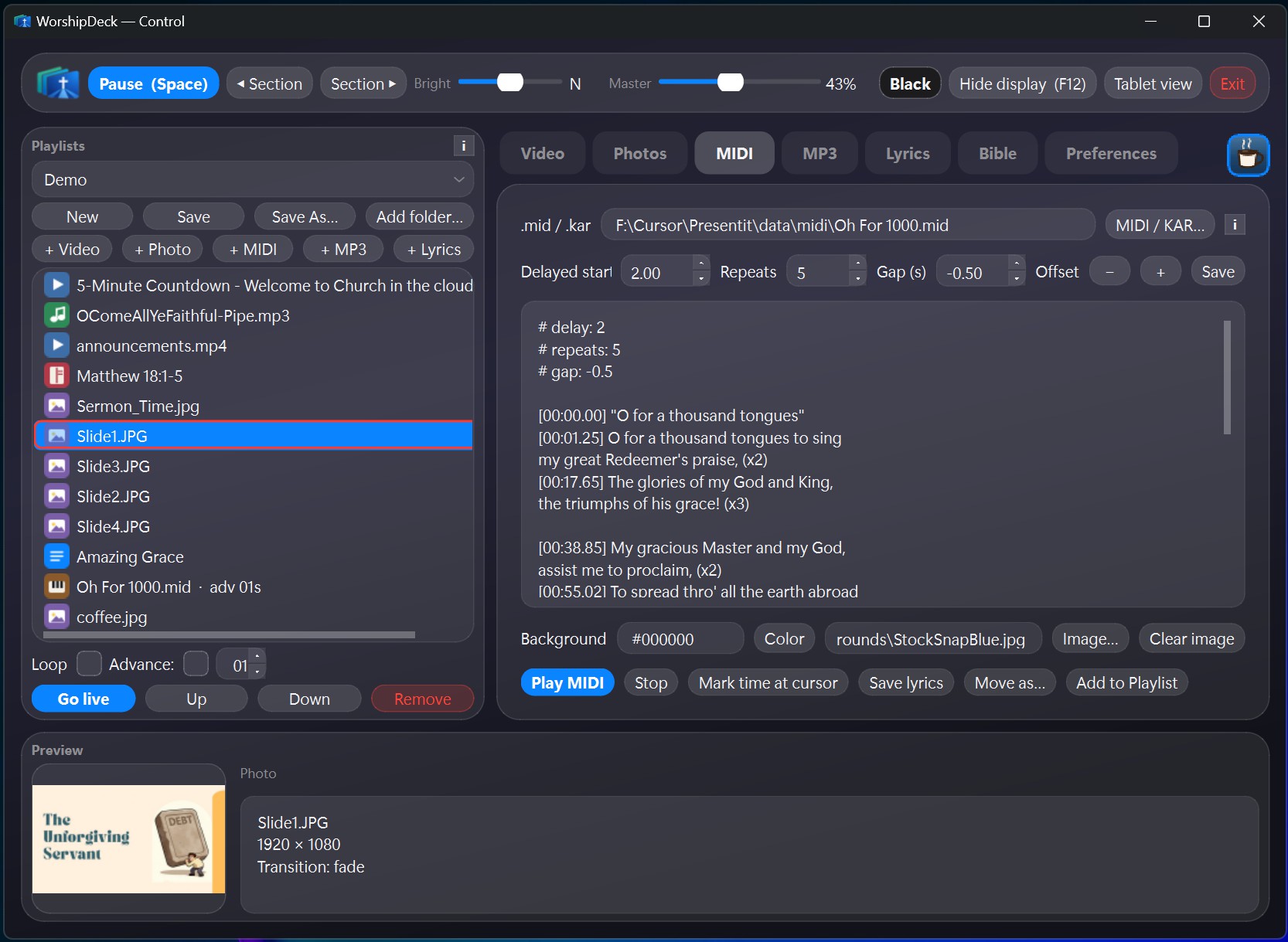
The control window is where the operator prepares and runs the service. The presentation display is kept clear for the audience.
Typical workflow
- Prepare the next item in the control area.
- Use RECALL to bring a saved item back into the active presentation.
- Use COMING to keep the next item ready for a smooth transition.
- Advance lyrics, Bible verses, media, or other slides from the control screen.
Lyrics and live-band lyrics
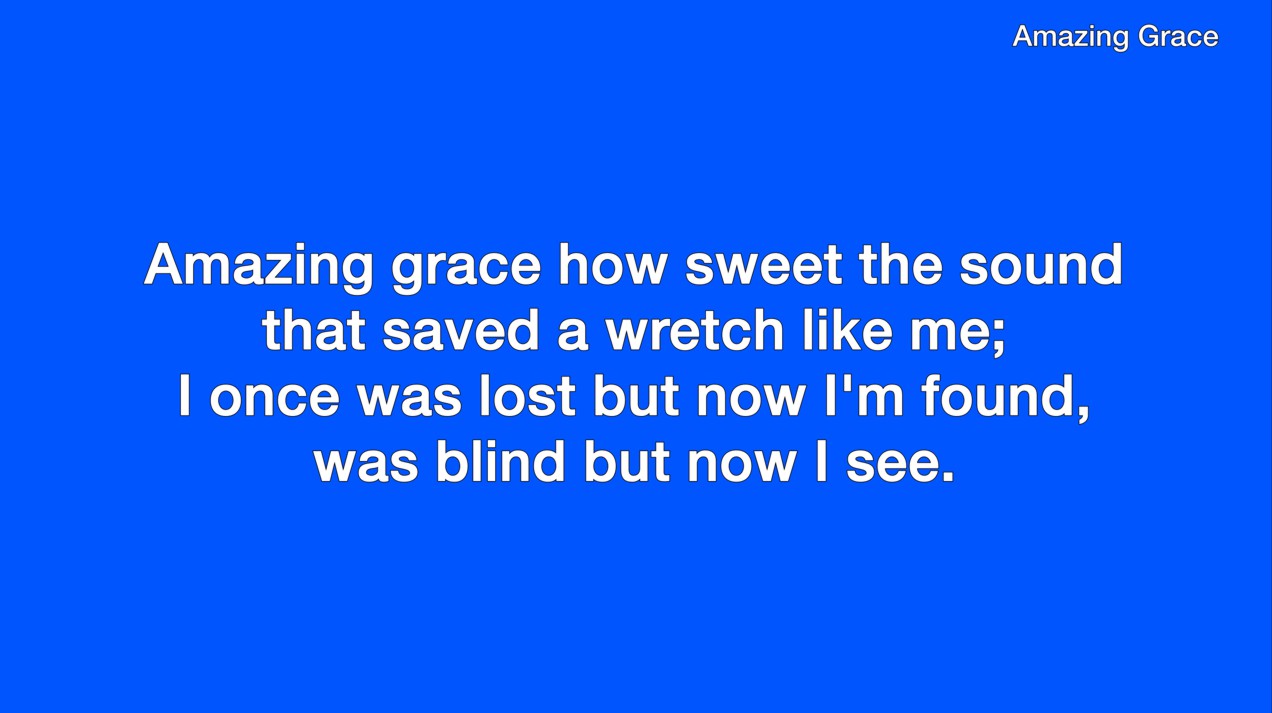
Use the lyric controls to prepare song sections and move through them during the service. Keep the current section on the output display while selecting the next section from the control window.
For live-band lyrics, prepare the song text in the format supported by your Opsis content library. Check line breaks and slide lengths before the service so that the congregation can read each screen comfortably.
Bible readings
Opsis can use XML Bible data to locate a book, chapter, and verse range. Select the book, enter the chapter and verse range, then send the reading to the presentation display.
Check the translation and verse range before going live. Opsis formats readings into clean two-verse slides so the operator can advance through a longer passage.
Photos and video
Use supported MP4, MOV, and MKV video files, as well as JPEG and PNG images. Add media to the service in advance and test files at the same display resolution you will use during the service.
Images can use fades or wipes between slides. For video, confirm that audio is routed to the intended sound system and that playback stops or changes as expected when the next item is selected.
MIDI and MP3 playback
Opsis supports MIDI and MP3 playback, including karaoke files such as .mid and .kar. FluidSynth provides instrument playback controls for MIDI files.
- Adjust track volume before the service.
- Set the tempo when the arrangement needs to follow the live team.
- Use key transpose to move the song into a suitable vocal range.
- Test the selected sound output and confirm that lyrics remain synchronized.
Projection and foldback
Use the second display for the congregation-facing projection canvas. Opsis composes the canvas at the display’s native resolution and scales it without cropping.
A third display can be used for stage foldback. Confirm the display order in Windows and test the foldback view before the service begins.
Preferences and themes
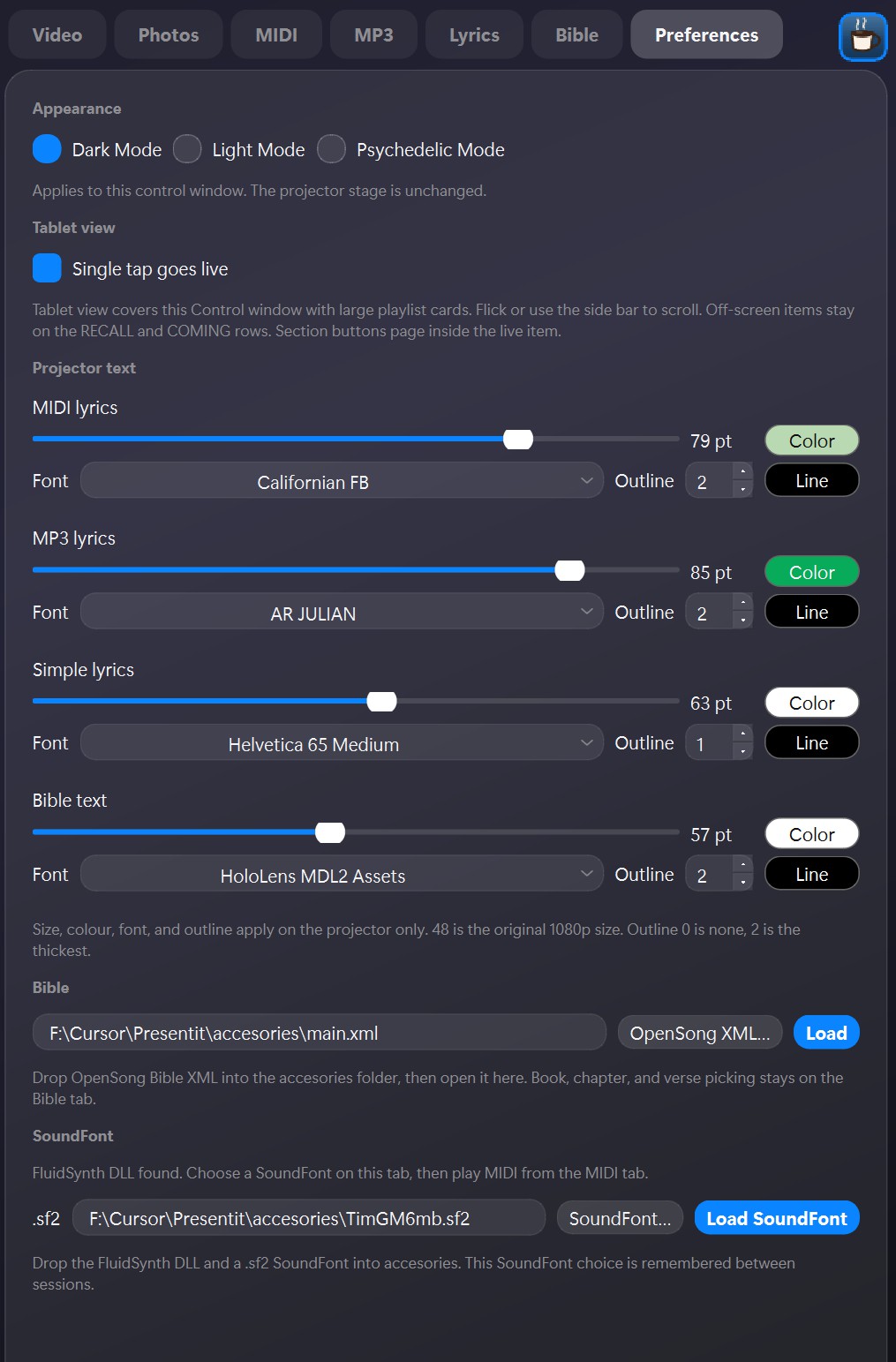
Open Preferences to adjust the application for the operator and the connected screens. Opsis includes Dark Mode, Light Mode, and a high-contrast psychedelic mode for the control desk.
Tablet touch mode
Tablet mode provides a full-screen three-column card layout for touch operation. Use the larger cards to select items quickly, and use RECALL and COMING to manage the current and upcoming service content.